
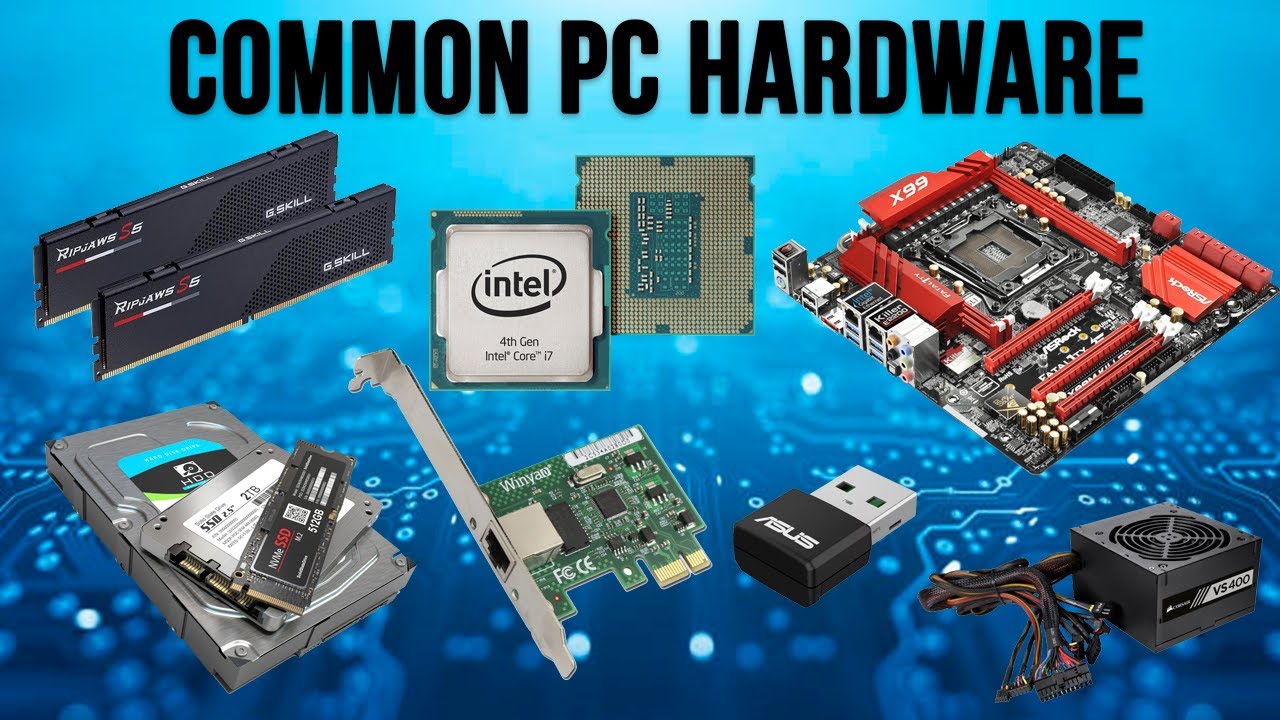

Computer hardware forms the physical foundation of every digital device we use today. Whether you are working on a laptop, building a desktop system, or simply curious about how computers operate, understanding hardware helps you make smarter decisions about performance, upgrades, and maintenance.
This beginner-friendly guide explains the essential parts of computer hardware and how they work together to run modern systems efficiently.
What Is Computer Hardware?
Computer hardware refers to the physical components of a computer system that you can see and touch. These parts process instructions, store information, and allow users to interact with software applications.
Common examples include:
- Processor (CPU)
- Motherboard
- Memory (RAM)
- Storage devices
- Input and output devices
- Power supply unit
Together, these components create a complete working computing environment.
Main Categories of Computer Hardware
Computer hardware is generally divided into four major categories.
1. Input Devices
Input devices allow users to send instructions or data to the computer.
Examples include:
- Keyboard ⌨️
- Mouse
- Scanner
- Microphone
- Webcam
These devices act as communication bridges between users and machines.
2. Output Devices
Output devices display processed information from the computer system.
Common output devices include:
- Monitor
- Printer
- Speakers 🔊
- Projector
They help users view results after data processing.
3. Processing Devices
Processing components perform calculations and execute commands inside the computer.
Key processing units include:
- Central Processing Unit (CPU)
- Graphics Processing Unit (GPU)
These parts determine how fast and efficiently tasks are completed.
4. Storage Devices
Storage devices save data temporarily or permanently for later use.
Examples include:
- Hard Disk Drive (HDD)
- Solid State Drive (SSD)
- USB flash drives
- Memory cards
They ensure information remains available even after shutting down the system.
Central Processing Unit (CPU): The Brain of the Computer
The CPU performs instructions from programs and controls overall system operations.
Its responsibilities include:
- Performing calculations
- Running applications
- Managing data flow between components
- Executing system commands
Faster CPUs generally result in better performance for demanding tasks such as editing, gaming, and multitasking.
Motherboard: The System’s Communication Hub
The motherboard connects all hardware components together and allows them to communicate effectively.
It holds:
- CPU socket
- RAM slots
- Storage connectors
- Expansion slots
- Power connections
Without a motherboard, individual components cannot function as a unified system.
Random Access Memory (RAM): Short-Term Working Memory
RAM temporarily stores data that the computer is actively using.
More RAM helps:
- Run multiple programs smoothly
- Improve system responsiveness
- Reduce loading delays
- Enhance multitasking performance ⚡
Unlike storage drives, RAM clears its data when the computer shuts down.
Storage Devices: Long-Term Data Retention
Storage devices keep files safe for long-term access.
Two common storage types include:
Hard Disk Drive (HDD)
- Larger storage capacity
- Lower cost
- Slower performance
Solid State Drive (SSD)
- Faster data access
- Improved reliability
- Lower power consumption
Many modern systems combine both for balanced performance and storage space.
Graphics Processing Unit (GPU): Visual Performance Engine
The GPU handles visual rendering tasks such as displaying images, videos, and animations.
It is especially useful for:
- Gaming
- Video editing
- 3D modeling
- Graphic design
Some computers use integrated graphics, while others rely on dedicated GPUs for advanced workloads.
Power Supply Unit (PSU): Energy Provider of the System
The power supply unit converts electricity from wall outlets into usable energy for computer components.
A reliable PSU ensures:
- Stable performance
- Hardware protection
- Efficient energy distribution
Choosing the right PSU prevents system instability and hardware damage.
Cooling System: Protecting Hardware From Heat
Computer components generate heat during operation. Cooling systems maintain safe temperatures and improve lifespan.
Cooling solutions include:
- Air cooling fans
- Heat sinks
- Liquid cooling systems ❄️
Proper cooling helps prevent performance slowdowns caused by overheating.
Expansion Cards: Enhancing System Capabilities
Expansion cards allow users to upgrade functionality without replacing the entire system.
Examples include:
- Graphics cards
- Sound cards
- Network interface cards
- Capture cards
These additions make systems adaptable to changing needs.
External Hardware Devices
External hardware connects outside the computer case but plays an important role in daily use.
Examples include:
- External storage drives
- Printers
- Headsets
- External monitors
- USB accessories
They extend usability and convenience.
How Computer Hardware Works Together
Each hardware component performs a specialized role, but their coordination enables smooth operation.
Here is a simplified workflow:
- Input devices send instructions
- CPU processes the instructions
- RAM supports temporary operations
- Storage saves long-term data
- Output devices present results
This collaboration allows computers to perform complex tasks quickly and accurately.
Tips for Beginners Choosing Computer Hardware
If you are selecting hardware for the first time, consider these practical suggestions:
- Identify your main purpose (study, gaming, office work, editing)
- Choose SSD storage for faster performance
- Select sufficient RAM for multitasking
- Ensure compatibility between components
- Invest in a reliable power supply
Making informed choices improves system longevity and performance 📊
Frequently Asked Questions (FAQs)
1. What is the difference between hardware and software?
Hardware refers to physical components of a computer, while software includes programs and operating systems that run on the hardware.
2. Can computer hardware be upgraded easily?
Yes, many components such as RAM, storage drives, and graphics cards can be upgraded depending on system compatibility.
3. How much RAM is enough for beginners?
For basic tasks like browsing and office work, 8GB RAM is usually sufficient. More demanding tasks may require 16GB or higher.
4. Why do computers slow down over time?
Performance may decline due to outdated hardware, insufficient memory, storage limitations, overheating, or background applications consuming resources.
5. Is SSD better than HDD for everyday users?
Yes, SSDs provide faster startup times, quicker file access, and improved system responsiveness compared to HDDs.
6. Do laptops and desktops use the same hardware components?
They perform similar functions but differ in size, upgrade flexibility, and power consumption due to design limitations.
7. How often should computer hardware be cleaned?
Cleaning every three to six months helps remove dust buildup and maintains proper airflow for stable performance.
Comments are closed.